
Xbox Series X Not Downloading in Standby Mode: What To DO And How To Fix It
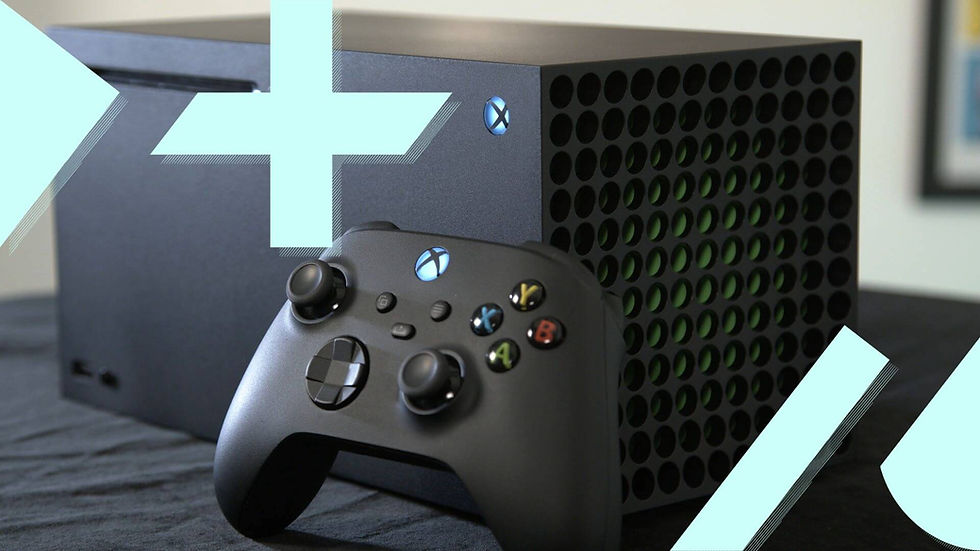
We know that the Series X is getting more expensive, but this guide is for all you out there with this issue. You put your Xbox Series X into standby before bed, expecting to wake up to a fully installed game or a finished system update. Instead, the download bar hasn't moved an inch. If your Xbox Series X is not downloading in standby mode, you're dealing with one of the most common — and most fixable — quirks on the console. It almost always comes down to a handful of settings working against each other,
not a hardware fault.
Nintendo Switch 2 giving you grief? Check out the most common issues and how to solve them!
Xbox Series X Not Downloading in Standby Mode: How Standby Mode Is Supposed to Work
Xbox Series X ships with two power modes: Instant-On (standby) and Energy Saver. In Instant-On, the console stays partially powered so it can pull background updates and boot almost instantly when you press the button. Energy Saver, on the other hand, shuts nearly everything down to save electricity, and for a long time that meant downloads simply paused until you turned the console back on. Microsoft has since extended background downloading to Energy Saver mode as well, but only when specific toggles are switched on — which is exactly where most people run into trouble.

The Most Common Cause: Disabled Update Settings
The single biggest reason downloads stall in standby is that the "keep console up to date" and "keep games and apps up to date" options are turned off, or were reset after a system update. Without both enabled, the Xbox has no instruction to reach out for new content once it's sitting idle. Head to Settings > System > Updates and confirm both boxes are checked. If you're on Energy Saver, also check Settings > General > Power Mode & Startup to make sure downloads are permitted in that specific mode, since Instant-On and Energy Saver are configured separately.
Network and Storage Roadblocks Xbox Series X Not Downloading in Standby Mode
Even with the right settings, a Series X in standby needs a stable, uninterrupted connection. Routers that power down overnight, aggressive Wi-Fi sleep settings on the router itself, or a console sitting just outside reliable range can quietly kill background downloads without any error message. Storage matters too — if you're using expansion storage and it's been ejected, disconnected, or is nearly full, the console has nowhere to write the files and simply skips the download rather than throwing a warning.
Why It Sometimes Only Updates Games You Recently Played
Players have also noticed that in Energy Saver mode, the console tends to prioritize titles played recently rather than checking every installed game overnight. This isn't a bug so much as a bandwidth-saving behavior — the Xbox runs scheduled update checks, commonly overnight, rather than pushing every update the moment it's available. If a game you haven't touched in weeks isn't updating, that's often expected behavior rather than something broken.
How to Fix Xbox Series X Not Downloading in Standby Mode
Work through these steps in order — most people resolve the issue in the first two or three.
1. Re-check your update settings. Go to Settings > System > Updates and make sure "Keep my console up to date" and "Keep my games & apps up to date" are both enabled.
2. Switch power modes and compare. If you're on Energy Saver, try switching to Instant-On (Standby) under Settings > General > Power Mode & Startup. Standby has historically been the more reliable option for guaranteed background downloads.
3. Confirm your network stays active. Check your router settings for any sleep or scheduled shutdown feature, and keep the console within strong Wi-Fi range or, ideally, on a wired Ethernet connection.
4. Check your storage. Make sure any external drive is properly connected and has enough free space. A drive under a few gigabytes of headroom can silently block installs.

5. Force a manual update check. Open Settings > System > Console Info and select Update Console to trigger a check while the system is still powered on.
6. Power cycle the console. Hold the Xbox button on the console itself for about 10 seconds until it fully shuts down, unplug it for 30 seconds, then restart. This clears a stuck system cache that can silently block background processes.
7. As a last resort, reset while keeping your games. From the Startup Troubleshooter (hold Pair and Eject while powering on), choose Reset this Xbox > Keep my games & apps. This reinstalls the system software without touching your saved data or installed titles, and it resolves deeper update-service issues that settings alone can't fix.
The Bottom Line
An Xbox Series X that won't download in standby mode is rarely a hardware problem — it's almost always a setting, a network hiccup, or a storage limit quietly getting in the way. Run through the update toggles, double-check your power mode, and keep your network stable, and background downloads should pick right back up.