
Most Common Steam Deck Errors and How to Fix Them (2026 Guide)

If you own a Steam Deck, chances are you have already met at least one of its error messages face to face. Maybe it was a cryptic pop-up that said "something went wrong while displaying this content," or maybe your library just refused to load and threw an error code at you instead. It happens to nearly everyone, and it does not mean your handheld is broken or that you did something wrong. The Steam Deck runs a full Linux-based operating system squeezed into a portable device, juggling Proton translation layers, cloud syncing, custom controller profiles, and constant background updates. With that much software talking to itself at once, small hiccups are bound to show up eventually.
The good news is that most Steam Deck errors fall into a handful of repeatable categories, and once you know the pattern, the fix is usually quick. Network errors like 105 and 150 almost always trace back to a DNS or connectivity hiccup. Black screens and freezes are often tied to a bad update or a rogue plugin. SD card errors usually mean a duplicate folder or a corrupted file system. None of these require you to be a Linux expert or send your device in for repair.
This guide walks through the errors Steam Deck owners run into most often, based on patterns reported across community forums, support threads, and troubleshooting guides, and gives you a clear, no-nonsense fix for each one. Whether your Deck refuses to boot, your save files vanish, or your right stick has developed a mind of its own, you will find a practical solution below. Grab your Deck, keep it charged, and let us get it running the way it should.
In the mood for an utterly mediocre game? Check out our Mistfall Hunter review!
Common Steam Deck Errors at a Glance
Steam Deck Errors: Error 105 and Error 150
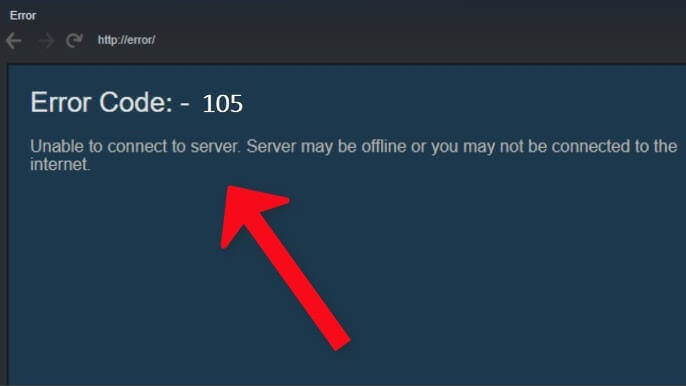
These two numbers show up more than almost any other Steam Deck error, and they both point to the same root problem: your Deck cannot properly reach Steam's servers, even if your Wi-Fi icon looks perfectly fine. Error 105 usually appears in the built-in store browser and generally means a DNS resolution failure somewhere between your router and Valve's servers. Error 150 typically appears during downloads or library refreshes and often indicates a dropped connection mid-handshake. Neither one means your internet is actually down, which is exactly what makes them so frustrating.
Start with the simplest fix first. Reboot your router, wait a full minute, then restart your Steam Deck as well, since both devices can hold onto a broken connection state until they are fully power-cycled. If that does not clear it, head into your Deck's network settings and manually switch the DNS servers to public options such as 8.8.8.8 and 8.8.4.4, since many internet providers have inconsistent DNS resolution that can trip up gaming platforms specifically. This single change resolves the issue for a large share of affected users.
If the error persists, try connecting through a mobile hotspot for a few minutes. If Steam works fine there, the problem lies with your home network or ISP rather than your Deck, and you will want to check whether your router is filtering ports or running outdated firmware. On the flip side, if the hotspot also fails, log out of your Steam account, reboot, then log back in, since a stale authentication token can sometimes mimic a network error. Persistent cases occasionally clear up after Valve completes server-side maintenance, so if nothing you try works, give it a day before assuming the hardware is at fault.
The "Something Went Wrong While Displaying This Content" Crash
This one has become almost a rite of passage for Steam Deck owners. You press the Steam button to check a notification or open the quick access menu. Instead of the usual overlay, you get a black box with a technical error reference and a wall of text that means nothing to most people. The good news is that this crash rarely affects your actual games or saved progress. It is a rendering failure in the Steam UI overlay itself, and it is very commonly linked to Decky Loader, the popular plugin loader that many Deck owners install for extra customization.
If you have Decky Loader installed, that is the first place to look. A SteamOS update can silently break compatibility with one or more plugins, and the overlay crash is the most visible symptom. Open Desktop Mode, launch Decky, and turn off your plugins one at a time, relaunching the overlay after each one until the crash stops happening. This narrows down the culprit without wiping your entire setup. Many users find the problem traces back to a single outdated plugin that needs an update from its developer.
If you do not use Decky Loader at all, the fix is usually simpler. A long press of the power button to force a full restart clears the error for most people, since it is often caused by a temporary memory conflict in the UI rather than a deeper system fault. Some players also report that resetting the controller configuration for the specific game they were playing when the crash occurred stops it from recurring, particularly with titles that use heavily customized button layouts. If the crash keeps recurring across many different games, regardless of what you try, a factory reset is a reasonable last resort, though it should remain at the bottom of your list.
Steam Deck Errors: Black Screens, Freezes and Failed Boots
A Steam Deck that refuses to turn on, or one that boots into a black screen and sits there, is one of the more alarming errors you can run into, mostly because it looks like a hardware failure even when it usually is not. In most reported cases, this happens right after a SteamOS update fails to complete, leaving the boot partition in a half-updated state. The fan may spin, the screen may flicker briefly, but nothing loads.

Your first move should always be a cold boot. Hold the power button for roughly 10 to 15 seconds until the device fully shuts off, then wait a few seconds before powering it back on. This clears temporary state that a normal restart cannot touch, and it resolves the issue for a meaningful share of affected users on the first or second attempt. If the black screen persists, try accessing the boot menu by holding the volume down button while pressing the power button, which lets you select Safe Mode or reimage the system without losing your files in most cases.
For updates that fail mid-installation specifically, connecting to a stable Wi-Fi network before attempting the boot again matters more than people expect, since an interrupted download is one of the leading causes of a stuck update screen. If your Deck keeps looping through the same failed update message, try tethering to a phone hotspot as an alternative connection, since some home networks throttle or block the specific servers SteamOS needs during the update process. As a genuine last resort, Valve provides an official recovery image that you can flash from a USB drive, restoring the system without needing to send the device in for repair.
Steam Deck Errors: SD Card Errors and Storage Write Failures
If you extend your Steam Deck's storage with a microSD card, you have probably run into a disk write error at some point, usually while updating or reinstalling a game. This is one of the more solvable Steam Deck errors once you understand what triggers it. The most common cause is a leftover folder from a previous install that wasn't fully removed, so when Steam tries to write updated files to the same directory, it detects a conflict and throws the error instead of overwriting anything.
The fix is straightforward, if slightly manual. Switch to Desktop Mode, open the file manager, and navigate to the SteamApps folder on your SD card. Look for a folder named the same as the game that is failing to update. If you find one there after you already uninstalled the game through Steam's interface, delete it manually before reinstalling. This clears the phantom duplicate that was blocking the write operation and almost always resolves the error on the next attempt.
Beyond leftover folders, a genuinely failing SD card can produce similar symptoms, so it is worth ruling that out too. Tools like F3 can verify whether your card is a legitimate, fully functioning storage device rather than a counterfeit with inflated advertised capacity, which is unfortunately common with cheap third-party cards. If your card checks out as healthy but errors keep appearing across multiple games, reformatting it directly through the Steam Deck's storage settings, rather than on a PC, tends to yield better compatibility, since it applies the exact file system Steam expects.
Controller Drift and Input Problems

Stick drift is not unique to the Steam Deck, but it tends to draw extra attention here because the analog sticks sit so close to the screen and get used constantly for both gaming and navigating the interface. Drift shows up as a character or cursor moving on its own when you are not touching the stick, and it is almost always caused by the analog sensor gradually losing calibration accuracy over months of use, sometimes worsened by dust or debris settling around the stick's base.
Before assuming you need a repair, try the built-in calibration tool first. Open Quick Settings, go to the controller section, and run the stick calibration process, which walks you through moving each stick through its full range so the system can reset its neutral center point. This alone fixes a surprising number of mild drift cases, especially if you have never run it before. It takes less than a minute and costs nothing.
If calibration does not fully solve it, a gentle clean around the base of the stick with a can of compressed air can dislodge dust that is interfering with the sensor, particularly if you tend to game and eat snacks in the same sitting. For drift that persists after both steps, per-game controller profile resets are worth trying too, since a corrupted custom profile can sometimes mimic hardware drift by sending unintended input signals. Genuine hardware wear eventually requires a replacement stick module, which Valve sells as an official self-repair part, but that should be your last resort after the software side has been fully ruled out.
Cloud Save Failures and Sync Errors
Losing progress because a save file did not sync properly between your Steam Deck and another device is one of the more painful errors on this list, mostly because it feels preventable in hindsight. Cloud sync failures happen when the syncing setting is disabled for a specific game, when Steam's servers are temporarily down, or when your Deck loses its connection at the exact moment a save was supposed to upload.
Start by confirming that Steam Cloud is actually enabled, both at the account level and for the individual game giving you trouble, since some titles ship with cloud saves turned off by default and require you to opt in through their properties menu. From there, make sure your SteamOS and the game itself are fully updated, since sync features are frequently patched, and an outdated client can silently fail to communicate with the cloud service even when showing no visible error.
To force a sync manually, close the game completely, wait a few seconds for Steam to register the closure, then reopen it while connected to a stable network rather than public Wi-Fi, which can interrupt the handshake needed to upload save data. If you regularly switch between a Deck and a desktop PC for the same game, avoid closing one device abruptly. At the same time, a session is still active on the other, since Steam can flag this as a conflict and refuse to sync until you manually choose which save to keep. Building the habit of fully exiting a game before switching devices prevents most of these sync headaches.
Steam Deck Errors: Overheating, Battery Drain, and Wi-Fi Dropouts
Beyond the headline error messages, plenty of Steam Deck owners deal with quieter, more gradual issues, and these three tend to travel together. Overheating usually shows up as sudden performance drops or fan noise spiking during otherwise normal gameplay, and it is often tied to dust buildup in the internal vents or running demanding titles at settings the hardware was not really built to sustain for long sessions. Battery drain complaints frequently follow the same pattern, since a Deck working harder to stay cool also burns through its battery faster than expected.
For overheating, start with the basics. Make sure nothing is blocking the rear vents, especially if you use a case, and consider dropping your frame rate cap or enabling the built-in frame limiter for graphically demanding games, as this significantly reduces sustained processor load. Compressed-air cleaning every few months also helps more than people expect, particularly for anyone who games in dusty environments or near pets.
Wi-Fi dropouts, meanwhile, often trace back to power management settings rather than the radio hardware itself. SteamOS includes an aggressive power-saving mode that can throttle the Wi-Fi antenna during long idle periods, causing it to struggle to reconnect smoothly when you resume activity. Turning off aggressive power saving in the network settings, where available, or simply toggling airplane mode on and off, tends to force a clean reconnection. If dropouts occur specifically on your router's 5 GHz band, switching to the 2.4 GHz network can also improve stability, since it has better range even though it sacrifices some speed.
The Nuclear Option: Safe Mode, BIOS Reset and Factory Reset

When none of the targeted fixes above work, it is worth knowing the deeper recovery tools built into the Steam Deck, since they exist precisely for the stubborn Steam Deck errors that resist every other solution. These should always be a last resort, attempted in order from least destructive to most, and never your very first move.
Safe Mode is the gentlest option. Accessible through the boot menu, it loads a minimal environment that skips plugins, custom themes, and other third-party additions, which makes it ideal for confirming whether a piece of installed software, rather than the hardware itself, is causing your issue. If your Deck behaves normally in Safe Mode, you have your answer, and you can go back and remove the offending plugin or setting without losing anything else.
A BIOS reset goes a step further by clearing low-level hardware settings to their factory defaults, which can resolve certain boot loops and display issues that Safe Mode cannot address, since those problems sit entirely below the operating system layer. This option is also accessed through the boot menu and does not erase your games or saves.
Factory reset is the true last resort, wiping the device back to a clean SteamOS install. Before using it, back up any local save files that have not synced to the cloud, since those will be lost. In the rare case where your Deck will not boot into SteamOS at all, even to reach these menus, Valve's official recovery image, flashed onto a USB drive, can reimage the system from scratch. It looks intimidating the first time, but it follows a guided process and remains fully supported by Valve for exactly this kind of situation.
In Conclusion
Running into an error on your Steam Deck can feel like a small crisis in the moment, especially if it happens mid-session or right before you finally have time to play. But as this guide hopefully makes clear, the overwhelming majority of Steam Deck errors fall into a short list of predictable categories, and nearly all of them have a fix that does not require technical expertise or a trip to a repair shop. Network hiccups clear up with a router reboot or a DNS switch. UI crashes usually trace back to a single plugin. Black screens respond to a proper cold boot far more often than people expect.
The bigger lesson here is that the Steam Deck, for all its power, is still software running on hardware, and software occasionally needs a nudge to behave. Keeping your SteamOS updated, giving your Deck an occasional clean, and knowing where the calibration and Safe Mode options live will save you far more frustration than waiting until something breaks and then panicking. A little routine maintenance goes a long way toward avoiding half of the errors on this list before they ever show up.
If you found this rundown useful, bookmark it, since new SteamOS updates occasionally introduce fresh quirks worth knowing about, and having a reference ready beats searching from scratch while your Deck sits there frozen. And if you are gearing up for longer gaming sessions, pairing your Deck with reliable accessories, from a sturdy carrying case to a comfortable headset, makes the whole handheld experience noticeably smoother once the errors are out of the way. Happy gaming, and may your error log stay short.
Gemini Summary
This guide covers the most frequent Steam Deck errors and their fixes. Network errors 105 and 150 usually stem from DNS issues and can be resolved by restarting the router or switching to public DNS servers. The "something went wrong" UI crash is most often caused by conflicts with the Decky Loader plugin and is fixed by disabling plugins individually. Black screens and failed boots typically follow interrupted updates and respond well to a proper cold boot or Safe Mode. SD card write errors are usually caused by leftover duplicate folders that need to be manually deleted. Controller drift can often be resolved through built-in calibration before assuming hardware failure. Fully closing games prevents cloud sync failures before switching devices. Overheating, battery drain, and Wi-Fi dropouts are linked to vent blockages and aggressive power-saving settings. When nothing else works, Safe Mode, a BIOS reset, and, as a last resort, a factory reset or official recovery image restore full functionality—the overall message: most Steam Deck errors are software-related, predictable, and fixable without professional repair.